Download SlideTimerApp — Free
A transparent countdown timer that floats on top of your PowerPoint Slide Show, Google Slides or Canva. Portable — just run it, no installation, works offline.
~3 MB · portable .exe · Windows 10 & 11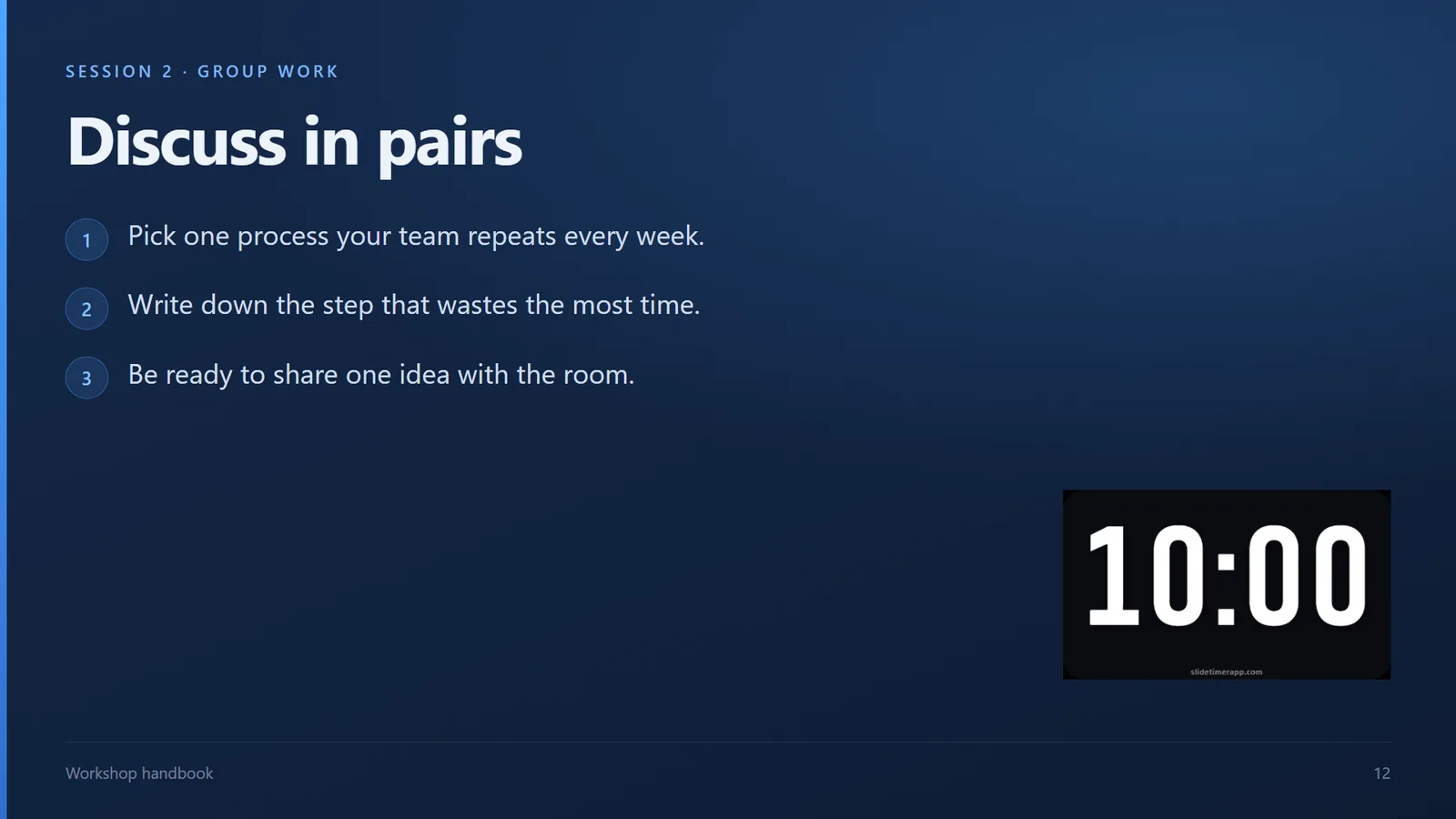
Download SlideTimerApp — free
Enter your email and your download appears straight away. We'll also send quick setup tips and let you know when the Mac version lands. No spam, unsubscribe anytime.
Prefer not to share your email? Download directly ›Is SlideTimerApp safe?
Yes. SlideTimerApp does one thing — draw a countdown window on your screen — and nothing else. Here is the honest detail, including the Windows message you may see.
Why you can trust it
- Works fully offline — no internet connection, no account, no login.
- Collects nothing — no tracking, no telemetry, no personal data. Your settings stay on your own PC.
- No installer, no admin rights — it is a single portable file you run; it does not change Windows or other programs.
- Tiny and self-contained — about 3 MB, no toolbars, no ads, no bundled extras.
- Easy to remove — to uninstall, just delete the file. That is it.
Want to double-check? Scan it yourself
For extra peace of mind, upload SlideTimerApp.exe to VirusTotal before running. It checks the file against 70+ antivirus engines in seconds.
How to install and run
- Download the file. Save
SlideTimerApp.exeanywhere — your Desktop or a folder of your choice. - Double-click to run. It is portable, so there is no setup wizard — the timer window opens straight away.
- If SmartScreen appears, click More info, then Run anyway. You only do this the first time.
- Reuse it anywhere. Launch it again by double-clicking the same file. Copy it to a USB stick or any other Windows PC — it runs without installing.
How to use it
- Set your time. Open settings, type minutes and seconds, or tap a quick preset (1, 5, 10, 15 minutes).
- Pin it on top. Click the pin so the timer floats above PowerPoint, Google Slides or Canva — even in full-screen Slide Show.
- Position it. Drag the numbers to move the window; drag an edge or corner to resize, and the digits scale to fit.
- Present. Start your slideshow (press F5). The countdown stays on top, turns red as time runs low, then flashes and sounds an alarm at zero, then keeps counting up into overtime so you can see how far over you have run.
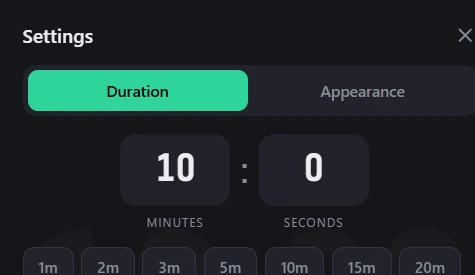
Handy shortcuts: Space start/pause · R reset · Esc close settings. New here? Read the full how to add a timer to PowerPoint guide.
System requirements
| Operating system | Windows 10 or Windows 11 (64-bit) |
|---|---|
| Size | ~3 MB |
| Installation | None — portable .exe |
| Internet | Not required (works offline) |
| Price | Free |
Download FAQ
Is SlideTimerApp safe to download?
Yes. It is a small (~3 MB) portable Windows app that works fully offline, collects no data, needs no admin rights and includes no ads or bundled software. You may see a Windows SmartScreen warning because the app is new and not yet code-signed — that is about reputation, not a real threat. You can scan the file on VirusTotal before running it.
Why does Windows show a SmartScreen warning?
Windows SmartScreen warns about any app it has not seen many times before. As a new independent app that has not yet purchased a code-signing certificate, SlideTimerApp triggers this message. Click More info, then Run anyway — you only need to do this once.
Is the download really free?
Yes — free for personal, classroom and business use, with no trial and no time limit. The free version shows a small slidetimerapp.com mark in a corner that never covers your slides. A watermark-free version is planned.
Do I have to enter my email to download?
No. You can use the small "Download directly" link under the email form. The email is optional — it just sends you the download link plus quick setup tips.